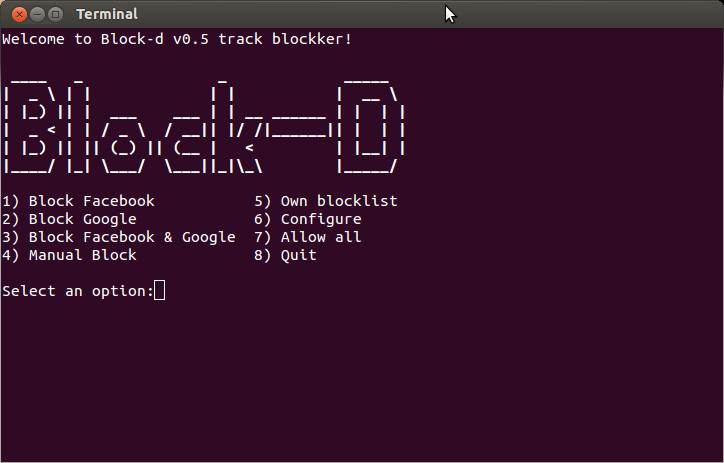
I have started working on a script last week, but I have been busy so it took a while to finish it. Well not absolutely finish, but have it working properly.
The script is basically an "Internet track blocker" that can be used to block sites from collecting data on you. Sites like facebook for example.
Thanks to hak5.org and their awesome tips & tricks I became interested in this and took their initial idea one step further.
The script is basically an "Internet track blocker" that can be used to block sites from collecting data on you. Sites like facebook for example.
Thanks to hak5.org and their awesome tips & tricks I became interested in this and took their initial idea one step further.
The command is in its simplest format looks like this:
sudo ngrep -q -d any 'facebook.com' -K 3
What is what?
- -q -- tells ngrep to be quiet, though you will still see quite a lot of information floating around
- -d any -- ngrep should listen on all network interfaces
- 'facebook.com' -- search for this term
- -K 3 -- kill the data stream containing the word by sending 3 reset packets
The script
Not being too creative, I have named my script "Block-d".
So basically what it does, it checks the data you send or receive and if it contains the given word (facebook in the above example), a reset segment will be sent, the connection reset and basically the data stream blocked.
So after freshening up my scripting knowledge and doing quite some research on the internet I have managed write a script that:
- Is pre-set to block facebook and google (alone and together as well)
- Allows to set what you want to block manually
- Allows making a permanent blocklist with sites you want to block (useful if you have your specific sites you want to keep blocked, whatever you like)
- You can set which interface you want to listen on (by default this is all=any
- You can also tell how many reset segments you want to send (I've set it to 3, however 1 would do the job as well, its not bad to go for a little overkill)
What you will need to run this script
First of all you need ngrep. Now I don't remember if I installed it manually or it was pre-installed, but I think you will need to install it manually. Not hard at all,
sudo apt-get install ngrep
And of course you need the script as well that you can download from here:
Blockd.sh
Edit: Also available on Github at : https://github.com/Nargren/Blockd
After downloading the script, change the permissions to executable. You can simply right click/properties/permissions/Allow executing file as program. Or you can do it the terminal way
sudo chmox -x Blockd.sh
(I am about to set up a github account, but for now you can use the download link.)
I have tried to keep everything as simple as it is possible and I am open for any feedback. I have been running and testing it and seems to be working fine, although please contact me if you find any bugs or whatsoever. I'm also open for any ideas and suggestion how could it be made better.
(also, "use at own risk")
Please make sure you read the description at the start of the script, there is some important information there.
Screenshot